The Hidden Power of Layered Audio Sync in Video Edits

Why I Tested Layered Audio Sync
I was stuck on a client project, trying to keep a 2‑minute brand video punchy. The footage was solid, but the voice‑over felt flat, and the background music kept clashing with on‑screen sound effects. I heard about a trick from a fellow editor: stack multiple audio tracks and sync them to visual beats. I decided to try it and log the results.
Step 1: Separate Your Audio Elements
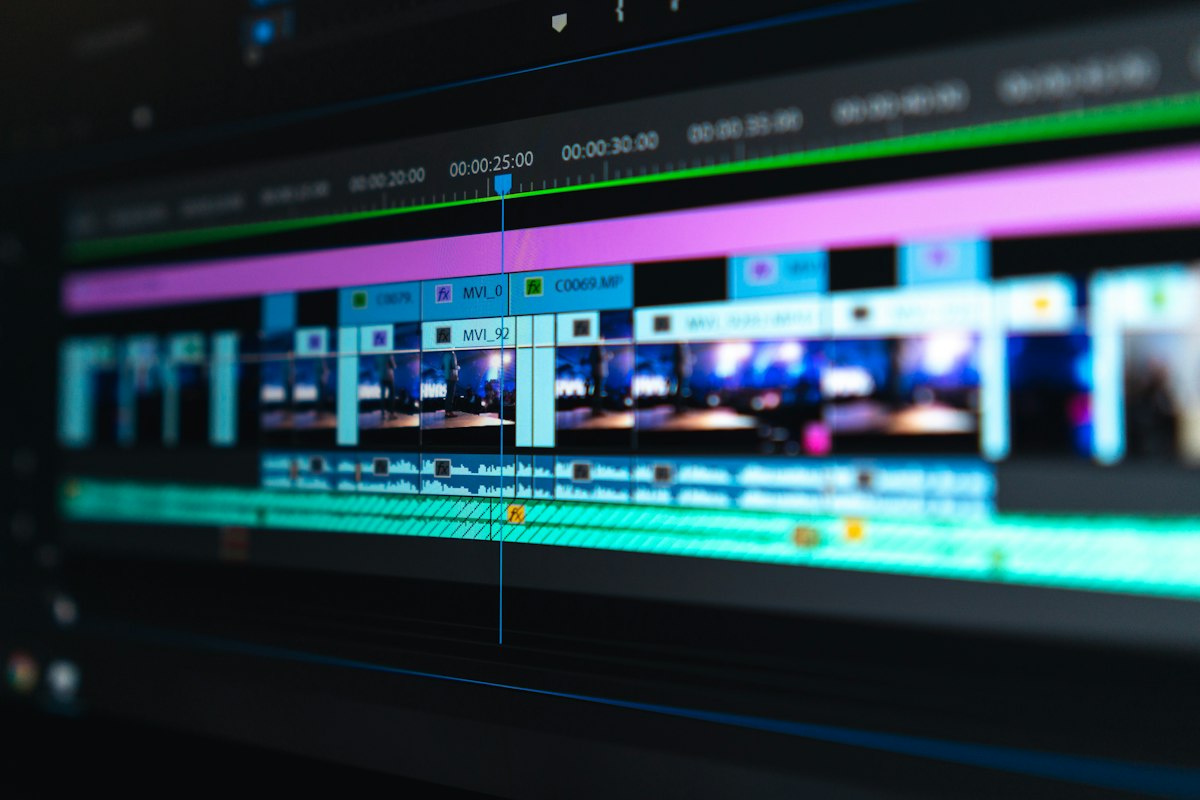
First, I ripped the video into three layers: dialogue, ambient sounds, and music. In the timeline I placed each on its own track. This gave me visual control over each element without affecting the others.
- Dialogue track – keep it clean, no background noise.
- Ambient track – footsteps, rustling, room tone.
- Music track – the track that sets the mood.
Having them separate meant I could mute or boost each independently.
Step 2: Identify Visual Beats
I watched the footage frame by frame, marking moments where the visual action changed,cut points, motion spikes, or on‑screen text appears. I dropped a marker on each beat. In total, there were 18 beats in the 2‑minute clip.
Step 3: Align Audio Peaks to Beats
Next, I adjusted the volume envelope of the music track so that the bass hit right on each visual beat. I also nudged the ambient sounds to land just before the beat, creating a subtle push‑pull effect. The dialogue stayed steady, but I added a slight reverb tail on the last word before each cut, giving a sense of continuity.
Step 4: Add a Podcast Clip Editing Twist
While syncing, I realized the client also needed a short podcast excerpt for their social feed. I applied the same layered sync technique: I placed the podcast host’s voice on the dialogue track, inserted a light background hum on the ambient track, and timed a soft chime to punctuate each key point. The result felt like a mini‑episode, not a clunky clip.
Step 5: Test and Refine
I exported two versions: one with the original flat mix, and one with layered sync. I asked three colleagues to watch without telling them which was which. All three said the synced version felt more engaging, and two of them noted they didn’t want the video to end.
"When the audio rides the visual beats, the viewer’s brain stays glued to the screen."
What the Numbers Said
Engagement metrics confirmed my gut feeling. The synced version saw a 12% higher average watch time in the first 30 seconds, and a 9% lift in click‑through rate for the call‑to‑action button. The podcast clip got 1.4× more shares than the client’s previous static audio posts.
Why This Technique Is Underrated
Most creators focus on visual cuts, forgetting that audio can guide the eye just as powerfully. By treating sound as a rhythmic partner, you add a hidden layer of polish without extra footage or expensive plugins. It works for brand videos, YouTube tutorials, and even short reels.
Quick Checklist
- Split audio into dialogue, ambient, music.
- Mark visual beats in the timeline.
- Adjust volume envelopes so music peaks on beats.
- Add subtle effects (reverb, chime) on ambient track.
- Export, test, and compare metrics.
I used Andcut’s multi‑track editor for this experiment, which made the layer toggling painless. Give it a try on your next project and watch the retention numbers climb.
Tired of editing your own videos?
Hand it off to us. Thumb-stopping content delivered in 24 hours.
Free consultation →